

Wi-Fi Transfer
Upload from your Mac or PC browser over your local Wi-Fi network — no cables, no cloud.
Introduction
Wi-Fi Transfer lets you upload files from a Mac or PC browser while your iPhone and computer are on the same Wi-Fi network. No cable required.
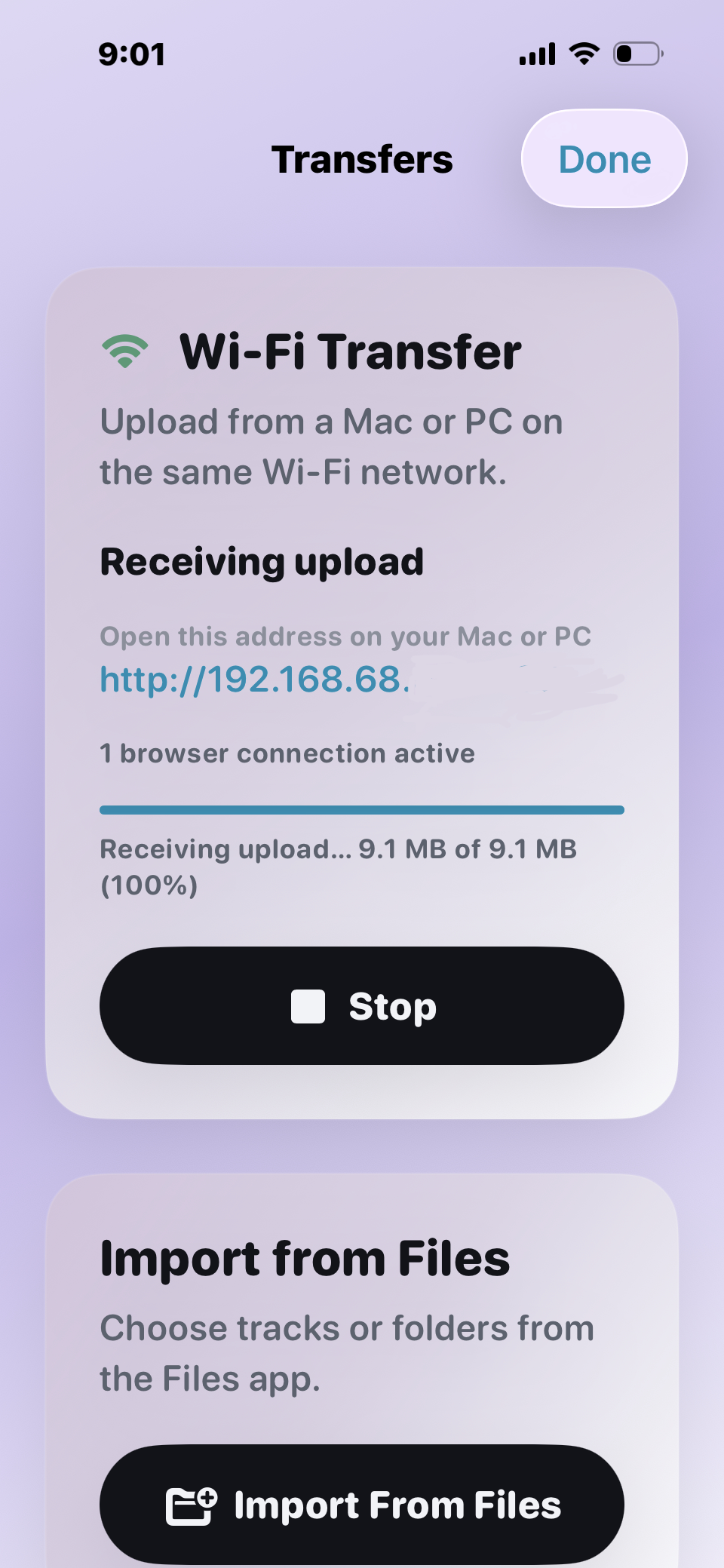
Steps — on iPhone
-
Open Stow → Transfers.
-
Tap Start (or enable Wi-Fi Transfer). Note the URL (e.g.
http://192.168.x.x:8765). -
Keep Stow open on the Transfers tab while uploading.
Steps — on your computer
- Open the URL in Chrome, Safari, or Edge.
- Choose a default import folder (or type a custom path).
- Drag files or folders onto the drop zone, or use Choose Files / Add Folder.
- Assign a different folder per file if needed.
- Tap Upload to Stow. Each file uploads with its own progress bar.
Tips
- On Windows, drag multiple folders from File Explorer at once. The folder picker only adds one folder per click.
- Large libraries upload reliably — failed files don't block the rest.
- Max 512 MB per file. Very large DJ sets or audiobooks upload one at a time.
- Subfolders from your computer are preserved under the folder you pick.
Troubleshooting
Upload stopped
Stow pauses the server when the app backgrounds. Keep the phone unlocked and Stow in the foreground.
Can't reach the page
Same Wi-Fi only — not cellular, not VPN-split networks. Check Local Network permission for Stow in iPhone Settings.
Coffee-shop Wi-Fi
Don't use Wi-Fi Transfer on public networks. Anyone on the LAN could upload if they have the URL.