Importing Media
Files app
Import audio directly from the iOS Files app, including iCloud Drive and connected services.
Introduction
The Files app is Stow's everyday import path — iCloud Drive, On My iPhone, USB adapters, and third-party providers that appear in Files.
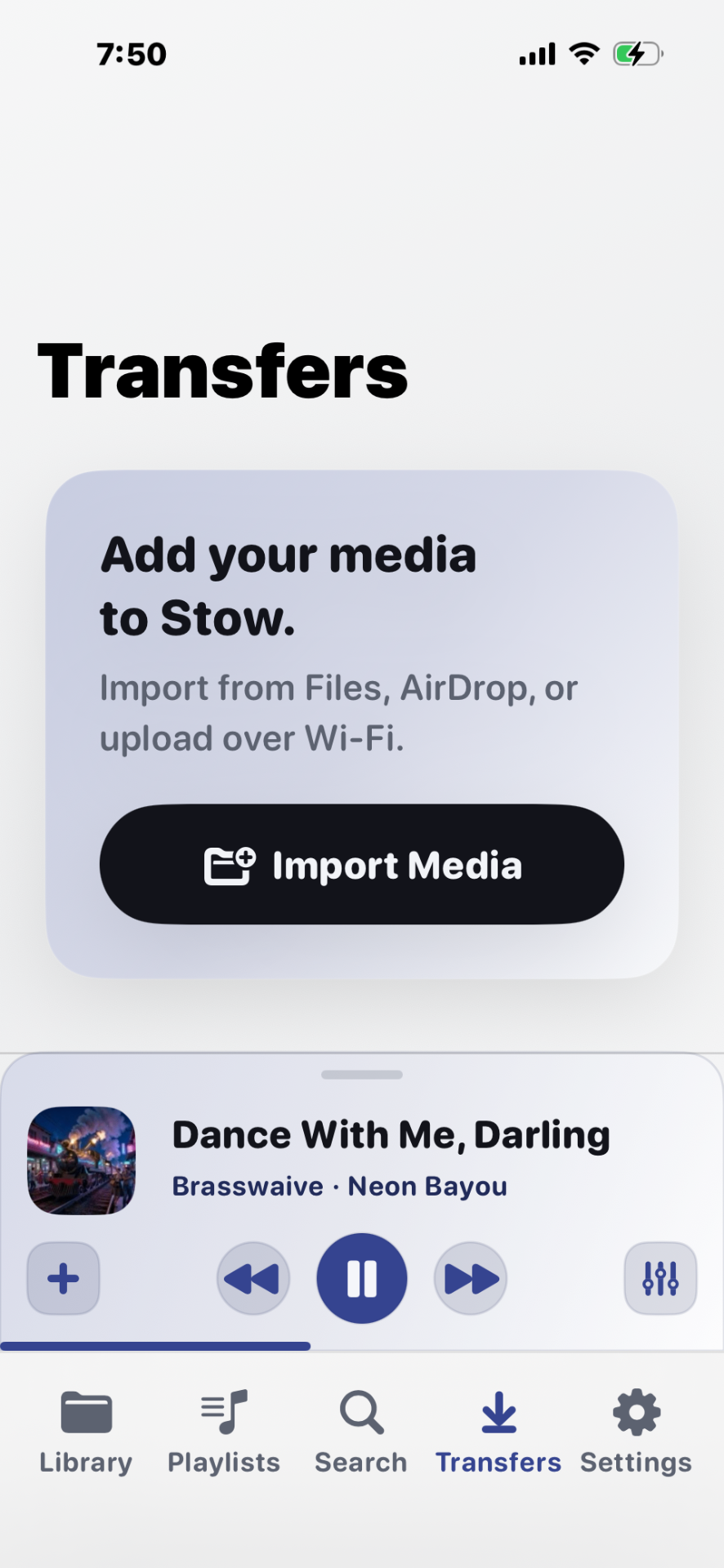
Steps
- Tap Transfers → Import → Files (or Library → Import).
- Choose a location — On My iPhone, iCloud Drive, or a connected provider.
- Select files or a folder.
- Tap Open. Stow imports in the background.
- Review the import summary when it appears.
Tips
- Importing a folder preserves subfolders beneath your chosen destination.
- From a folder detail screen, imports nest under that folder automatically.
- You can import again anytime — duplicates in the same folder are skipped.
Troubleshooting
Provider not listed
Open the provider's app first, enable “Show in Files”, then try again.
“Unsupported” in summary
See Supported formats.